
Model Tree Groups –
Group Features and Inputs in Your Tree
New Feature in 3DCS Version 7.7 – See all the new features in 3DCS V7.7
Why this is helpful — Navigate large models easily by grouping features in your tree together.
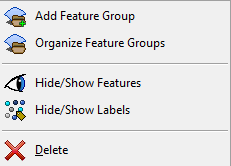
Users can organize sets of Features and other into different groups by right-clicking on a 3DCS node (Features, GD&T, Measures, or Moves) and selecting [Add Feature Group]. A new Group node will appear and the user will be able to drag other features within that node.

Procedure:
1.Right-click on a node in the 3DCS Model Navigator (GD&T, Feature, Points, Moves, Tolerances, Measures, Spec Studies).
2.Select Add Group. Users can drag and drop items into a new or existing group.
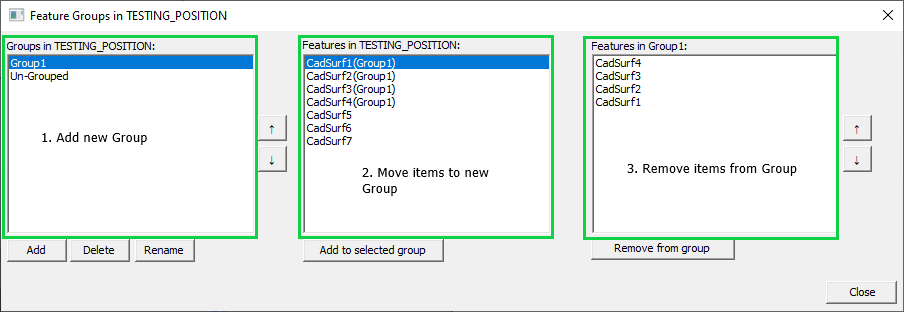
3.Users can also use the Organize Group dialog, to change the other of items or where groups are ordered in the Model Navigator.
Procedure:
1.Right-click on a node in the 3DCS navigation tree (GD&T, Feature, Points, Moves, Tolerances, Measures, Spec Studies).

2.Select Organize Groups.

3.[Add] a new Group, select the Features desired to be in the new group and select [Add to Selected Group].

See for yourself in this video clip from the 7.7 Webinar:
Join DCS to Learn How to Use All the New Features in the New Version 7.7
