
Use Measure Generator to Quickly Create Measures in CAD
Tips and Tactics offer useful information  about taking full advantage of all the features that CATIA and 3DCS possess.
 about taking full advantage of all the features that CATIA and 3DCS possess.
Save time, and frustration with these quality of life hints that make modeling faster and easier.
Save time by using the Measure Generator to quickly create multiple measurements at multiple DCS Points.
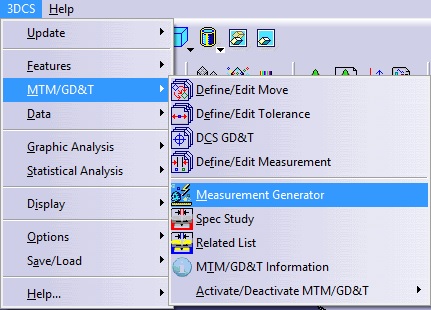
Whether you use 3DCS integrated in CATIA, or DCS’s stand alone version, 3DCS Multi-CAD, Measure Generator can be used to quickly add points to your model.
Where is Measure Generator in CATIA V5?
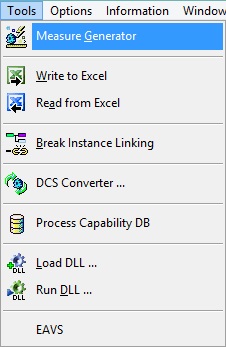
Finding Measure Generator in 3DCS Multi-CAD (Stand Alone Version)
How to Use the Measure Generator
Start the Measure Generator
1.Specify the Measure type
•Nominal-Point: Only requires one Point
•Point-Point: Will require two points when selecting
2.Select the DCS points to apply measures to
•Select Part: Will Select all Points under the Part
•Select Features: The user can Specify which points
3.Specify the Directions
•Each of the five Directions can be used. The Measure Generator will create a measure for each direction selected (up to five).
4.Apply the Upper and Lower Specification Limits and Spec.ification Mode
5.Apply a Prefix (Not Required)
6.When finished, select the –Add –> button
7.In the Measure List, select each measure and click Apply
